
WO Mic PC: Download the Official Windows Client
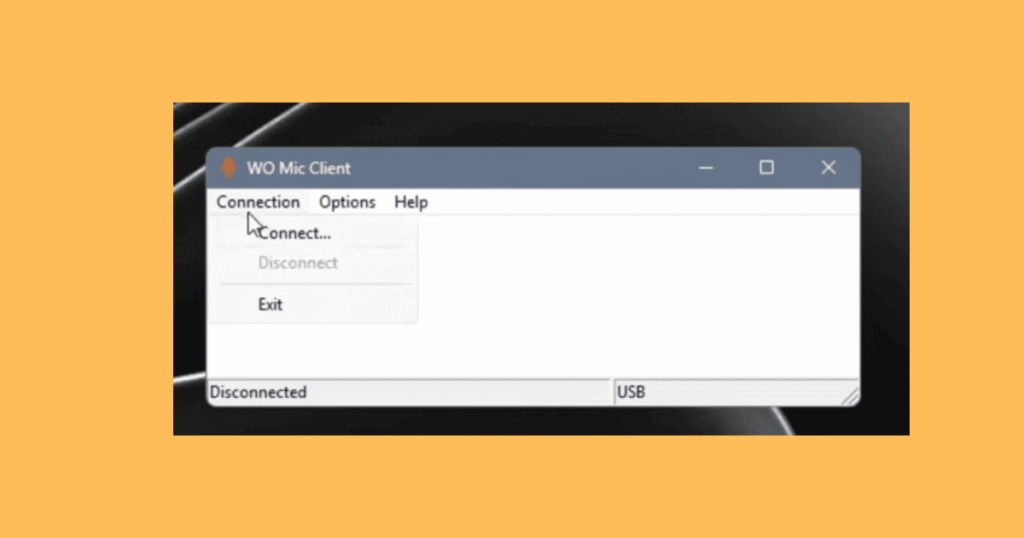
WO Mic PC is the Windows version of WO Mic that lets your computer use an Android phone as a microphone. Unlike what many download websites claim, you don’t need BlueStacks, LDPlayer, or any Android emulator. The Windows software includes a native desktop client and a virtual microphone driver that work directly with Windows.
The Android app runs only on your phone. Your PC only needs the Windows client and driver.
What Is WO Mic PC?
WO Mic for PC consists of two Windows components:
WO Mic Virtual Driver
Creates a virtual microphone that Windows applications can detect.
Do You Need an Emulator?
No. BlueStacks, LDPlayer, NoxPlayer, and similar emulators are designed to run Android apps on Windows. They cannot install the WO Mic virtual audio driver, so Windows won’t recognize the emulator as a microphone.
If you’re searching for WO Mic PC APK or WO Mic Pro APK PC, those files are for Android devices only. For Windows, install the native client instead.
What are the System Requirements?
Before installing the WO Mic for your computer, make sure your computer meets these requirements.
| Requirement | Details |
|---|---|
| Operating System | Windows 11, Windows 10, Windows 8.1, Windows 8, Windows 7 |
| Architecture | 32-bit or 64-bit |
| Runtime | Microsoft teams C++ Redistributable |
| Permissions | Administrator access for driver installation |
| Phone | Android device with the WO Mic app |
What is the WO Mic PC Driver?
The Wo Mic Driver for PC creates a virtual recording device in Windows.
Without the driver:
- Windows won't detect WO Mic.
- Communication apps can't select it as a microphone.
- The client may connect successfully, but audio won't be available.
After installation, Windows should display WO Mic Device as an available recording device.
How to Verify the Driver?
Open Device Manager and expand Sound, video, and game controllers.
Confirm that:
- WO Mic Device appears in the list.
- No yellow warning icon is displayed.
- Device status shows This device is working properly.
If the device doesn’t appear, reinstall the driver before troubleshooting the connection.
What are the Supported Connection Methods
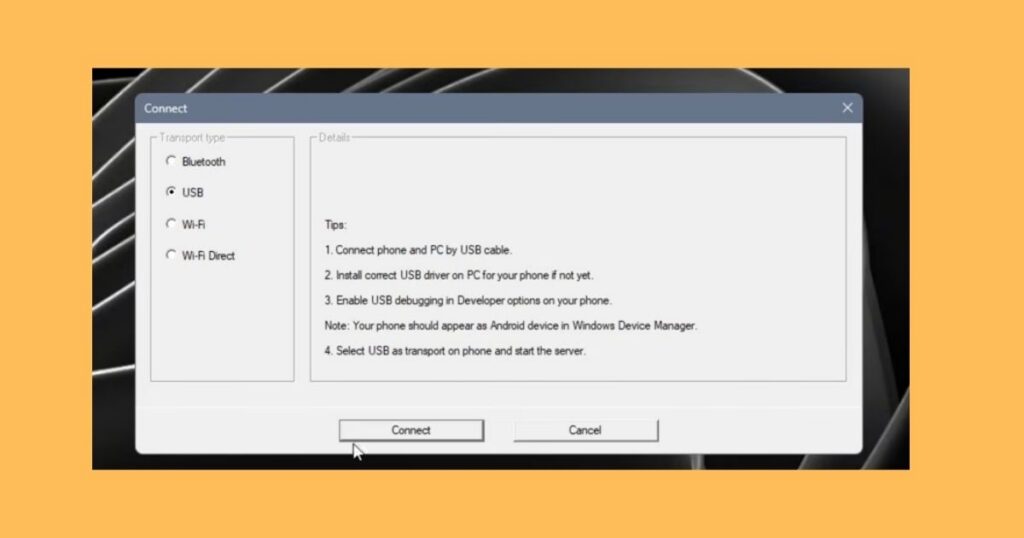
WO Mic supports four connection methods:
- USB
- Wi-Fi
- Bluetooth
- Wi-Fi Direct
USB is generally the most stable option with the lowest latency.
For detailed setup instructions, see the WO Mic Installation Guide instead of repeating the process here.
Conclusion
WO Mic PC is the native Windows client that lets you use your Android phone as a microphone without an Android emulator. Install the Windows client and virtual driver, verify the driver in Device Manager, and connect your phone using USB, Wi-Fi, Bluetooth, or Wi-Fi Direct. For detailed setup or troubleshooting, refer to our Installation Guide, Troubleshooting, iPhone, and Linux guides.
Frequently Asked Questions
Do I need an Android emulator to use WO Mic PC?
No. WO Mic for PC is a native Windows application. You only need the Windows client, the WO Mic virtual driver, and the WO Mic app on your Android phone. Android emulators like BlueStacks or LDPlayer are not required.
Can I install WO Mic on a PC on Windows 11?
Yes. it supports Windows 11, Windows 10, Windows 8.1, Windows 8, and Windows 7. Install the latest Windows client and ensure the required Microsoft Visual C++ Redistributable is available on your system.
How do I verify that the WO Mic driver PC is installed?
Open Device Manager and expand Sound, video, and game controllers. If WO Mic Device appears without a warning icon, the driver is installed correctly and ready to use.
Why isn't WO Mic for Windows detecting my phone?
Check that both the Windows client and the Android app are running, and that you’re using the same connection method on both devices. If the problem continues, verify that the virtual driver is installed correctly.
Can I use the WO Mic on PC without installing the driver?
No. The virtual driver is required because it creates the microphone device that Windows applications recognize. Without it, your phone cannot be used as an audio input on your PC.
Which connection method works best with the WO Mic on PCs?
USB is the recommended option because it provides the most stable connection and the lowest audio latency. Wi-Fi, Bluetooth, and Wi-Fi Direct are also supported if you prefer a wireless setup.
Is there a WO Mic PC APK?
No. APK files are designed for Android devices only. The Windows version uses a native desktop client and virtual driver, so you don’t need an APK or an Android emulator.
Where can I download the official WO Mic client PC?
Download the Windows client from a trusted source to ensure you receive the latest version with the official virtual driver. Avoid third-party websites that bundle outdated installers or recommend Android emulators.
Does WO Mic in PC work with Discord and Zoom?
Yes. Once the driver is installed, WO Mic Device appears as a standard microphone in Windows. You can select it in Discord, Zoom, Microsoft Teams, OBS Studio, Skype, Audacity, and other compatible applications.
Why is WO Mic for PC not showing in Windows?
If WO Mic Device doesn’t appear in Windows, the driver may not have been installed correctly. Reinstall the Windows package, restart your computer if required, and check Device Manager to confirm the driver is present.